
CK ATR Trend Flip
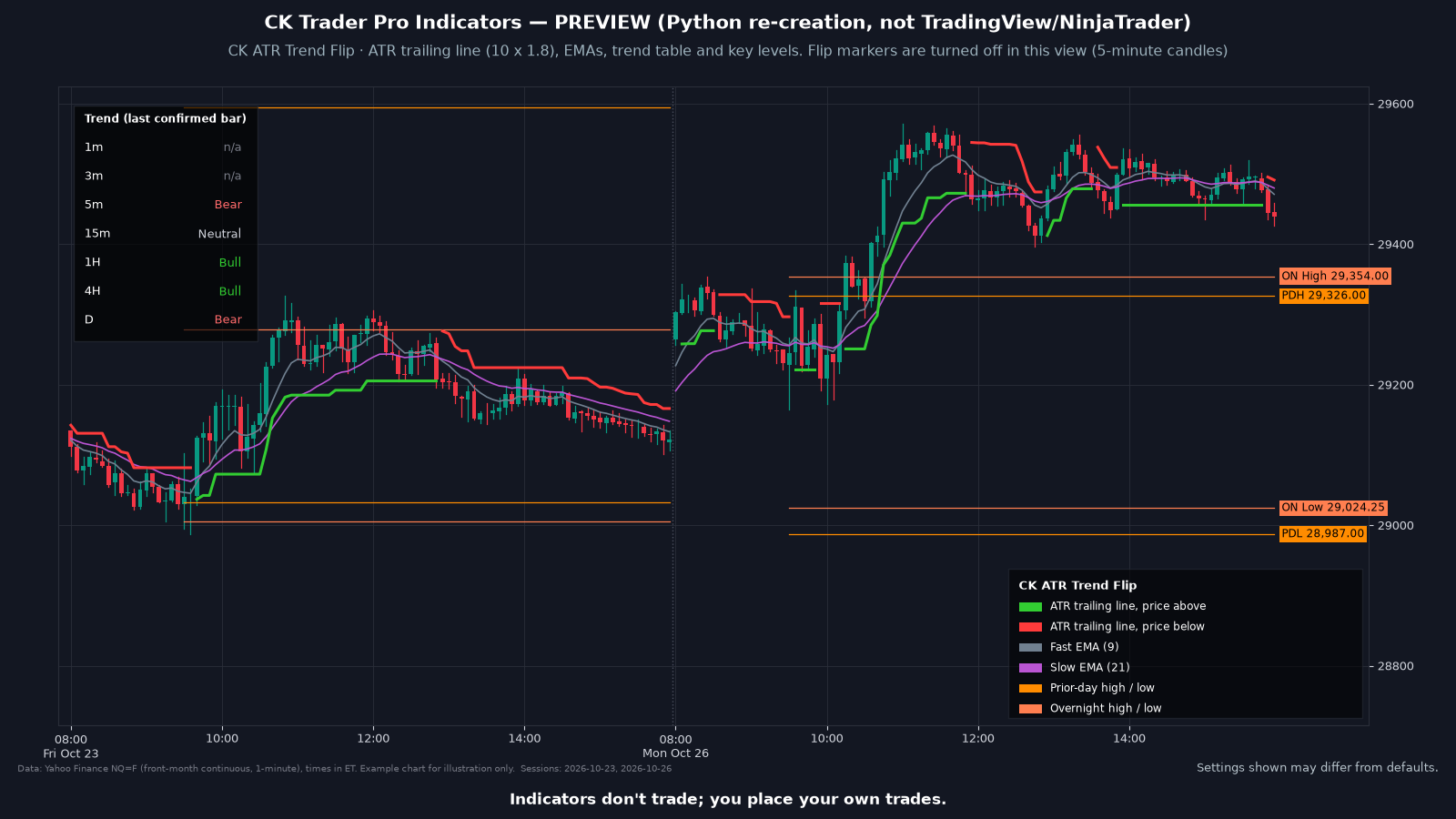
Draws an ATR trailing line and marks the bar where price flips it in the direction of an EMA trend filter, labeled Up flip or Down flip. It also shows a trend table for seven timeframes and the prior-day, Asia, London and overnight highs and lows. Markers appear when price flips an ATR trailing stop in the direction of the EMA trend filter. All settings are adjustable. Indicators display information only and never place orders.
These indicators never place orders. The trader always has the last say.
Up flip and Down flip markers are mechanical calculations, not trade recommendations. Indicators display information only and never place orders. The trader has the last say on if and when to take a trade. Futures trading involves substantial risk of loss.
What it draws
- Up flip and Down flip markers on the chart.
- A trailing line based on the average true range, colored by direction, with fast and slow EMAs shown (9 and 21 by default) and an optional trend EMA (50 by default). An Up flip or Down flip marker is drawn on a confirmed (closed) bar, one per trend leg.
- A session window (on by default, 9:30 to 11:30 AM ET) limits when markers can appear; you can turn it off. Optional: a chop filter (off by default). Candle coloring by trend (gray in chop) and the prior-day, Asia, London and overnight levels can be turned on or off. Colors are adjustable. Use a Minute or Second chart.
Settings
- ATR length and multiplier (an automatic preset by chart timeframe, or your own), the flip arming window in bars, trend mode and the three EMA lengths, the session window, the chop filter and its thresholds, trend-table position and size, which levels and tags to show, candle coloring, and colors.
- On the chart, the markers are labeled Up flip and Down flip.
Install
- Use the download link in your email. Don't unzip the file.
- In NinjaTrader 8: Tools, Import, NinjaScript Add-On.
- Select the .zip and finish the import.
- Add the indicator to a chart and sign in to NinjaTrader with the account email the license will use.
FAQ
Do the indicators place trades?
No. These indicators never place orders. The trader always has the last say.
Which platform does this work with?
NinjaTrader 8 on Windows. It does not work with NinjaTrader 7. You need your own NinjaTrader account, brokerage connection and market data.
What does the trend table show?
Bull, Bear or Neutral for the 1, 3, 5, 15, 60 and 240 minute and daily timeframes, read from the last confirmed bar of each. It describes those bars. It is not a forecast. A timeframe finer than your chart shows n/a. Load about 60 days of history so the daily row can fill in.
Requirements
| Platform | NinjaTrader® 8 (8.1.5.0 or later for account-email licensing) |
| Operating system | Windows, as required by NinjaTrader 8 |
| License | One license per person, tied to your NinjaTrader® account email. Lifetime or Monthly. See the Indicator License Agreement. |
| Data | Market data is not included. You need your own market data feed that works with NinjaTrader. |
| Delivery | Your download link is emailed to you within 2 business days of purchase, and your license is added to the NinjaTrader® account email you entered at checkout. |
Indicators don't trade; you place your own trades.
This is a charting and educational tool. It does not trade for you and is not trading advice. Every customer gets the same indicator; it is not personalized and does not know your account, goals or risk.